

Documentation Index
Fetch the complete documentation index at: https://lightdash-mintlify-c29f1982.mintlify.app/llms.txt
Use this file to discover all available pages before exploring further.
MCP server support for AI agents is in Beta.
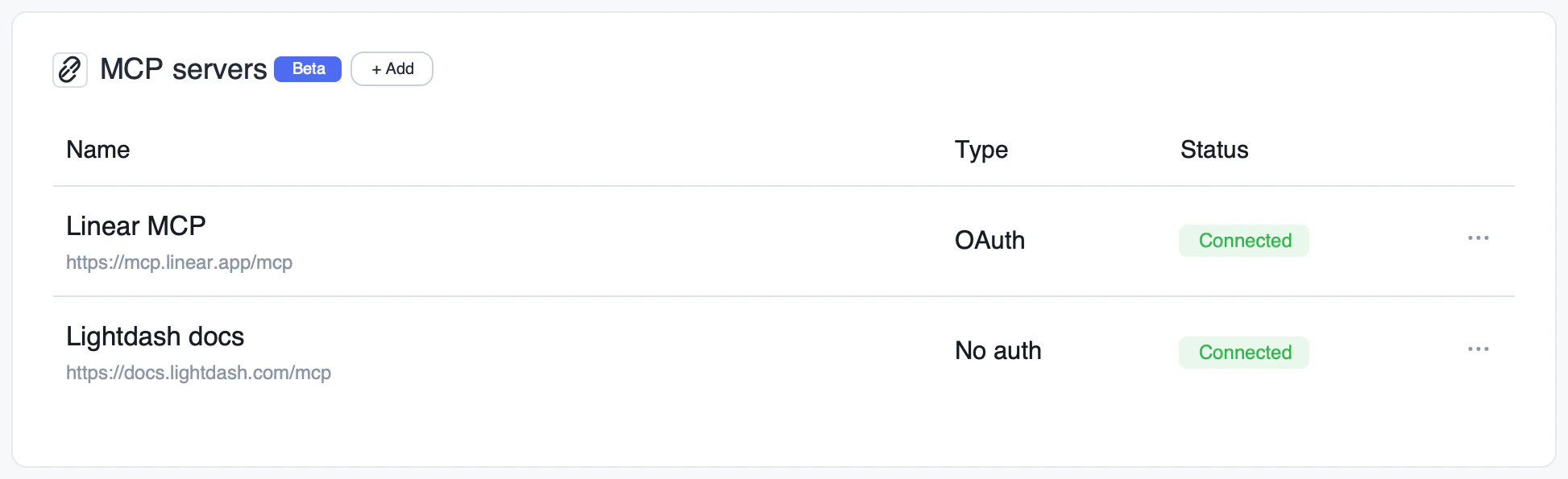
What you can do
Once an MCP server is connected to an agent, the agent can use its tools as part of any conversation. Common examples:- Notion — search docs, read pages, and create new pages from agent findings. See Get started with Notion MCP.
- Linear — file issues from anomalies the agent spots, comment on tickets, query project status. See Linear MCP docs.
- Confluence — search the knowledge base for context before answering, or publish summaries. See Getting started with the Atlassian Remote MCP Server.
- Lightdash Docs — give agents access to the complete Lightdash documentation so they can answer questions about Lightdash concepts, configuration, and best practices. URL:
https://docs.lightdash.com/mcp, auth typeNone. See Lightdash Docs MCP. - Any other service that exposes a remote MCP server (GitHub, Jira, Slack, internal tooling, etc.)
Need help setting up an MCP server? Reach out to us and we’ll help you get it wired up.
Add an MCP server
MCP servers are configured per project and can be attached to one or more agents in that project.Add a new server
Click Add MCP server and provide:
- Name — a friendly label (e.g.
Notion,Linear) - URL — the remote MCP server endpoint (e.g.
https://mcp.notion.com/mcp) - Auth type —
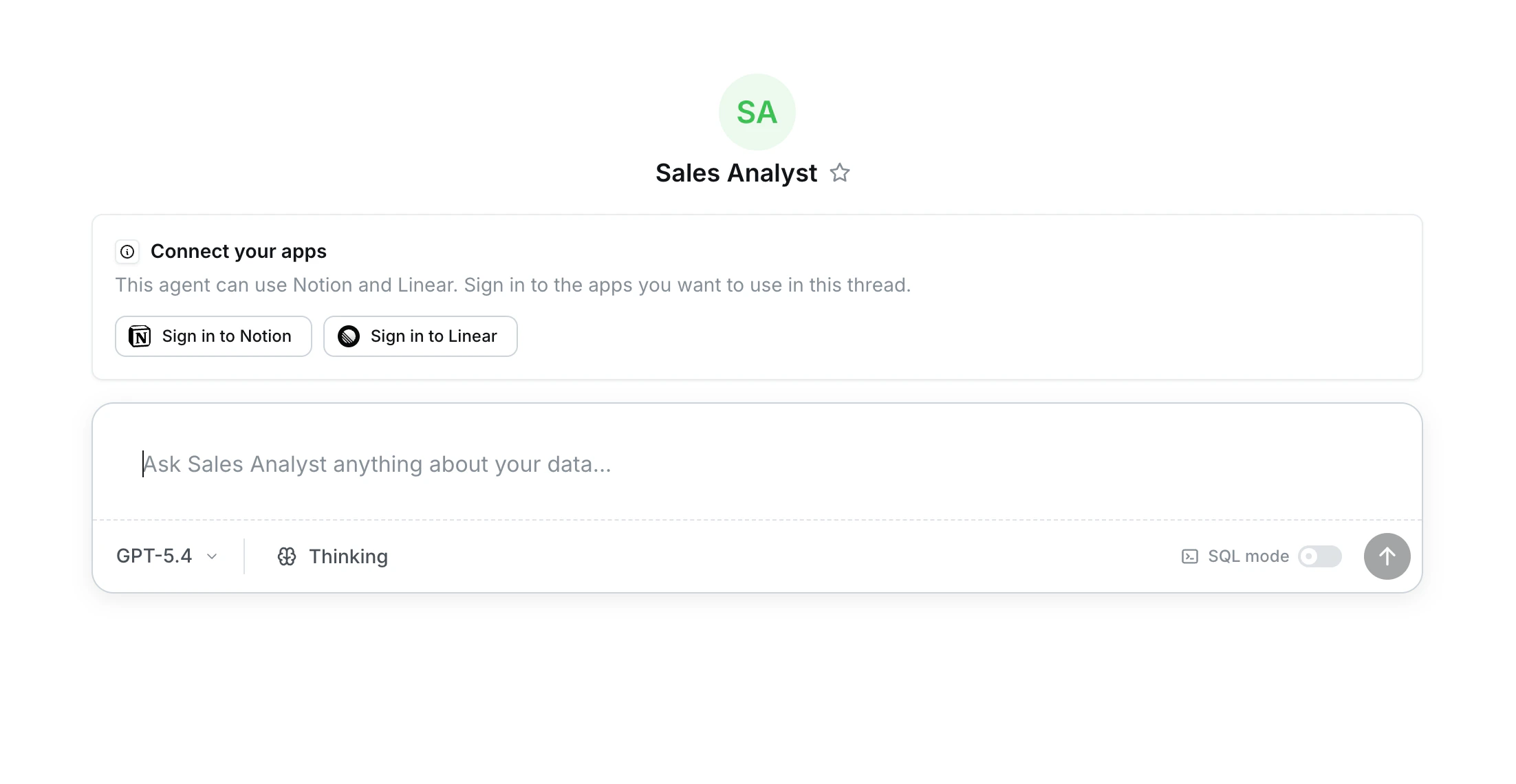
None,Bearer token, orOAuth - Allow shared OAuth credential (OAuth only) — turn this on if you want a manager to connect a single shared account that everyone can fall back to. Leave it off to require each user to connect their own account.
Provide credentials
Depending on the auth type:
- Bearer token — paste the token. It is encrypted at rest.
- OAuth — every user clicks Connect under the MCP server to start the OAuth flow with their own account. If Allow shared OAuth credential is on, a manager can also click Connect shared account to set up a fallback credential. Lightdash handles token storage and refresh in both cases.
- None — no credentials required.
How credentials work
- MCP servers live at the project level and can be reused across any number of agents in that project — configure once, attach anywhere.
- Bearer token servers always use one shared token for everyone chatting with the agent. Actions are attributed to whoever owns that token.
- OAuth servers support two credential scopes — personal and shared — and you choose which ones to allow per server.
OAuth credential scopes
| Scope | Who connects | Who can use it | Attribution |
|---|---|---|---|
| Personal | Each project member connects their own account. | Only the user who connected it. | Actions are attributed to that user. |
| Shared | A project manager connects a single account (e.g. a service account). | All users chatting with agents that use the server. | Actions are attributed to the shared account. |
Bearer-token servers do not support personal credentials — every user shares the same token.
Choose which tools are exposed to the agent
Each MCP server exposes a set of tools, and you decide which ones the agent can use. Open an MCP server in your project settings and use Tool permissions to enable just the tools that fit the agent’s job.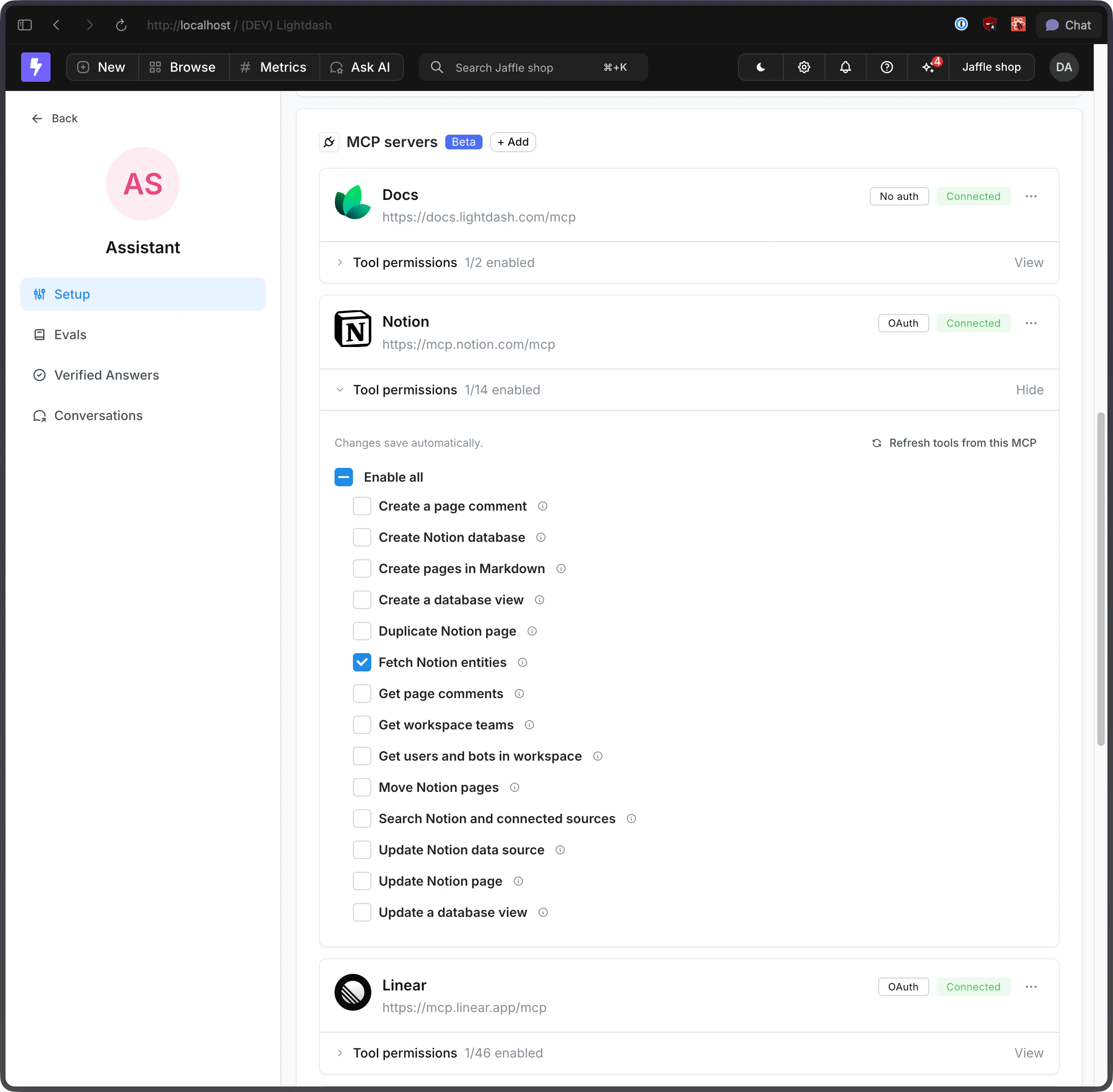
- Stick to read-only when that’s all you need. Enable tools like
searchorfetchand leave write tools (create, update, delete) off so the agent can look things up without changing anything. - Match tools to the agent’s role. A support insights agent probably needs to read Notion pages, not move or delete them.
- Open things up gradually. Start with a small set of tools and add more as you see how the agent uses them.
Pick the right MCPs and tools for each agent
Every enabled tool — its name, description, and parameter schema — is included in the agent’s context on every turn. That context is shared with instructions, conversation history, and the model’s own reasoning, so a long menu of tools leaves less room for the things that make answers good. The fix is simple: be intentional about what you turn on.- Build agents around a job. A focused product analytics agent or RevOps agent usually beats one general-purpose agent with every MCP attached.
- Attach the MCPs that agent actually uses. If a product analytics agent never touches Confluence, don’t connect it.
- Enable the specific tools for the task. Within an MCP, turn on the handful of tools the agent needs and leave the rest off.
Example agents
Product analytics agent + Linear“Daily active users dropped 12% yesterday. File a Linear issue for the growth team with the breakdown by platform.”The agent queries your data, summarizes the drop, and creates a Linear ticket with the chart and breakdown attached. Support insights agent + Notion
“Summarize this week’s top support themes and add it to our weekly review page in Notion.”The agent pulls the data from your warehouse, generates the summary, and appends it to the right Notion page. RevOps agent + Confluence
“Before answering questions about pipeline definitions, check our Confluence runbook.”The agent searches Confluence for the canonical definition, then answers using both the doc and your data.
Security
- All credentials (bearer tokens and OAuth tokens) are encrypted at rest.
- OAuth refresh is handled automatically; expired tokens trigger a re-authorization prompt.
- MCP servers are configured at the project level and only available to agents in that project.
- Personal OAuth credentials are scoped to the user who connected them — no other user can use, view, or impersonate them through the agent.
- Only project managers can enable shared OAuth credentials and connect or disconnect the shared account; any project member who can view the project can connect or disconnect their own personal credential.
Related
- Getting started with AI agents
- Data access control
- Lightdash MCP server — exposing Lightdash itself as an MCP server to other tools